Skip table of contents

Release 2025-11 (M39)

This release includes new features and improvements that make SOTO easier to use and more efficient.

SOTO


Improved handling of black KLTs

SOTO is better able to identify and grasp black KLTs with reflective surfaces.

Improved error tutorials on the SOTO display

The error tutorials shown on the SOTO display are now more relevant, and previous software bugs have been fixed to make error resolution easier.

SOTO drives more precisely

The driving capability of SOTO has been further improved, resulting in more precise dirving and fewer homing errors.

Fixed top laser scanner error

Occasionally, SOTO would falsely identify the top laser scanner as being retracted. This bug has now been fixed, ensuring smoother operations.

SOTO Fleet Manager (SFM)


Rebranding to SOTO Fleet Manager

We are excited to announce that, following our acquisition by Jungheinrich AG, our fleet management system has been rebranded as SOTO Fleet Manager. The user interface now features an updated look and feel aligned with Jungheinrich’s visual identity. While the branding has evolved, all existing functionality remains unchanged. We look forward to continuing to support your intralogistics automation goals as part of the Jungheinrich family.

Role-based access to SOTO Fleet Manager

The features and viewing permissions of the SOTO Fleet Manager can now be restricted via role-based access control. Roles can be configured via app roles in the current authorization provider.

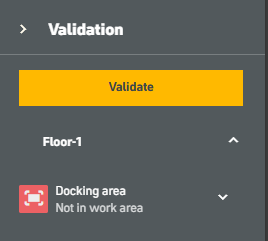
Validate the space availability of docking nodes
image-20251202-083036.png

The Environment Editor now includes a new validation function to check the 'Docking Area' of docking nodes (e.g., chargers, elevators, handover stations and parking zones). This function validates whether there is sufficient space for SOTO to dock to a particular docking node.

For instance, it identifies whether the docking area overlaps with physical obstacles, such as chargers, modeled obstacles, or shelves.

For further instructions, see section "Validation".
New guide lines tool in the Environment Editor
Screenshot 2025-12-02 092038.png

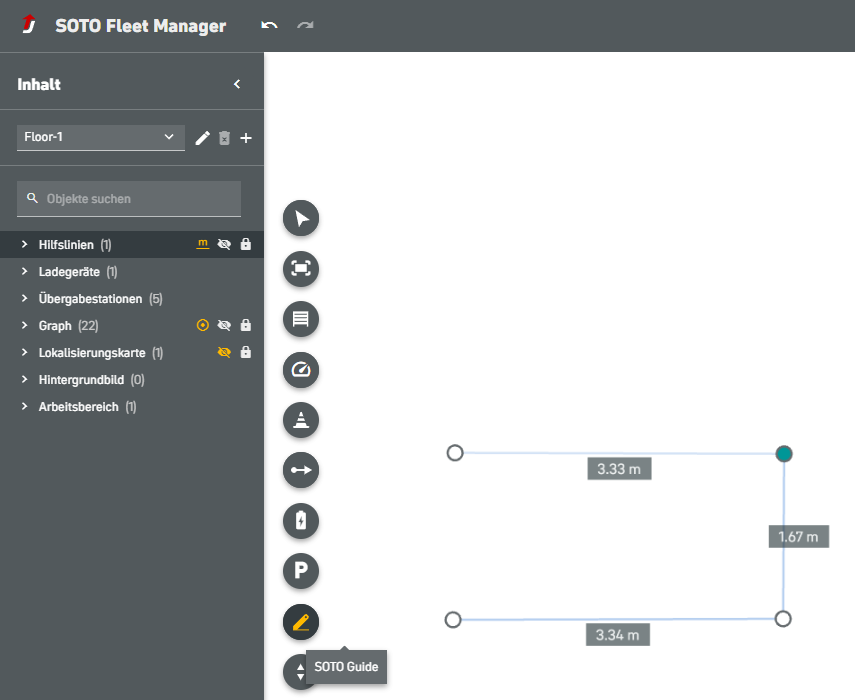
You can now add reference lines on the map using the Guide Lines feature in the left-hand toolbar. These lines help you mark elements such as pedestrian crossings, footpaths, or other warehouse floor markings to provide visual guidance during modelling.
To use it, hover over the SOTO Guide and select “Guide Lines”:

  1. The mouse cursor will turn into a pencil icon.

  2. Click on the map to place the points that define your guide line.

  3. Dimension labels are shown by default to give you an orientation.

  4. Press Enter to complete the current line.

This is particularly useful when creating or adjusting driving paths near footpaths or other warehouse markings.

Technical Specifications

This section provides detailed information about the technical specifications of SOTO. This information is intended for technical experts who need to understand the inner workings of SOTO to deploy, troubleshoot, or improve the performance of SOTO.

Improved magcli commands for retrieving blackbox files

magcli log commands have been improved:

  • Introduced debug subcommand

  • Improved exception report

  • Improved files inside the black boxes

  • Introduced ls command

  • Added support for simulation machines


JavaScript errors detected

Please note, these errors can depend on your browser setup.

If this problem persists, please contact our support.