
How to use the Magazino support portal
Where to find the portal
You can reach the Magazino Support Portal at: support.magazino.eu
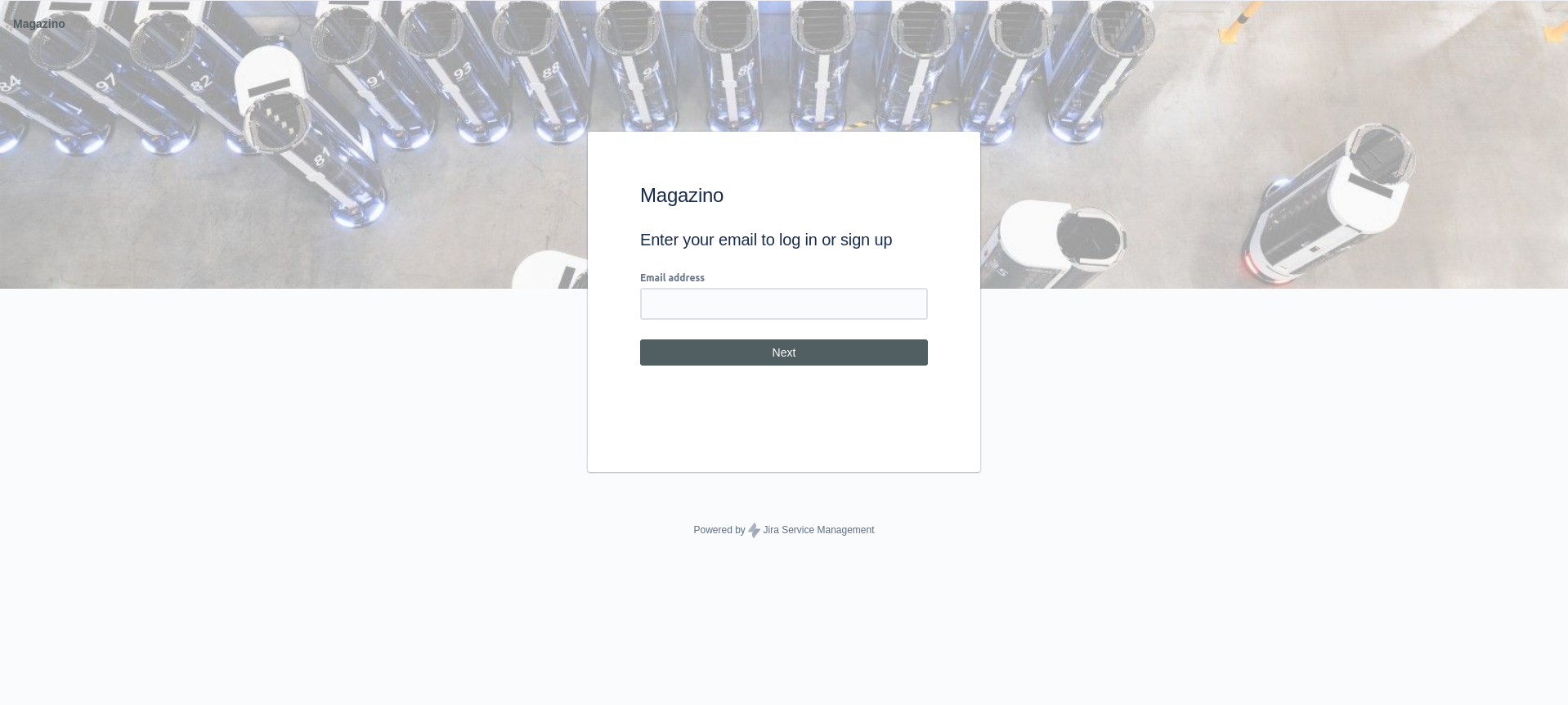
Sign up
Which e-mail addresses can be used?
Do not sign up using a mailing-list address (an email address that forwards emails to multiple users). Individual users on the mailing list will not automatically receive access rights to the portal.
You can use shared accounts for sign up (one email address that is accessed and used by several users).

If you use shared accounts, make sure to regularly check the shared mailbox for ticket updates.
Notifications to mailing lists
If you want to notify a list of users about ticket updates, Magazino can register a mailing list.
To register a mailing list, please write a ticket in the support portal, mentioning your organization and the mailing list you would like to register.
Please ensure that each recipient on the mailing list has a personal account on the support portal.
If you do not have a personal account, you will not be able to respond to emails or open any links provided in the notifications.
Working with open tickets
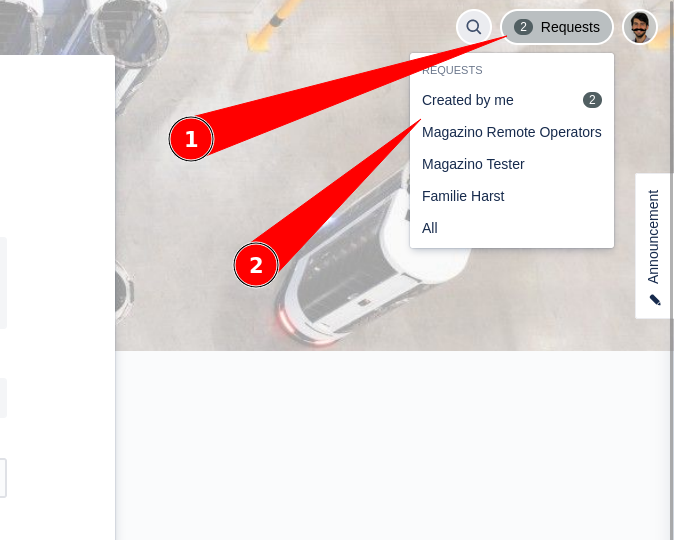
To view your open tickets, click “Requests” in the top right corner and select either “Created by me” or your organization.
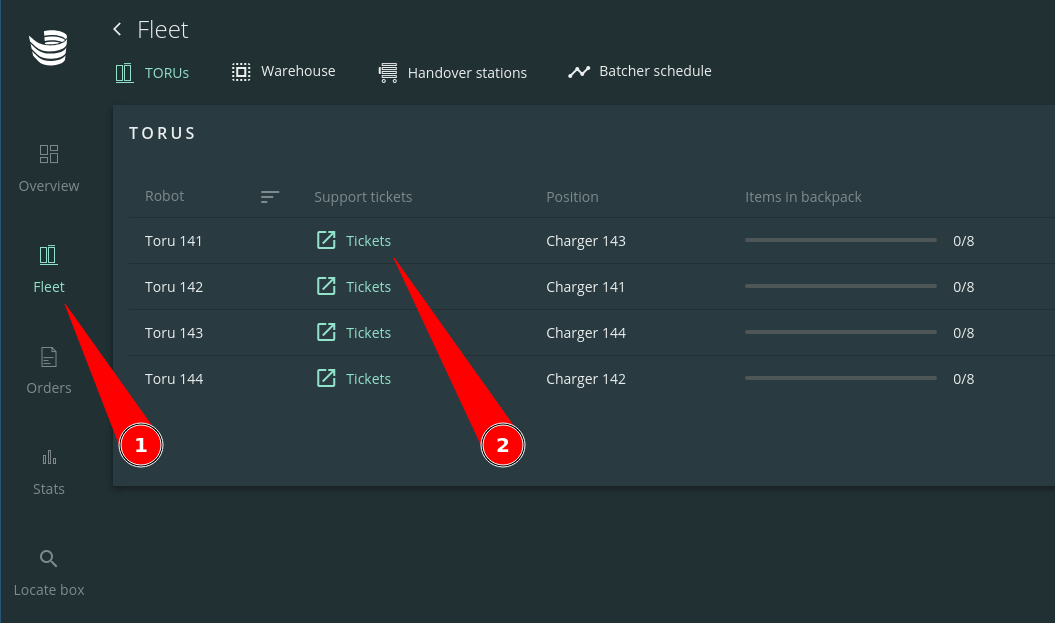
If you want to jump directly to the tickets that are open for a particular robot, you can use a shortcut in ARC:
Click on “Fleet” in the sidebar
Make sure the tab “TORUs” is selected in the top bar
Next to each robot you will find a link to the respective ticket.
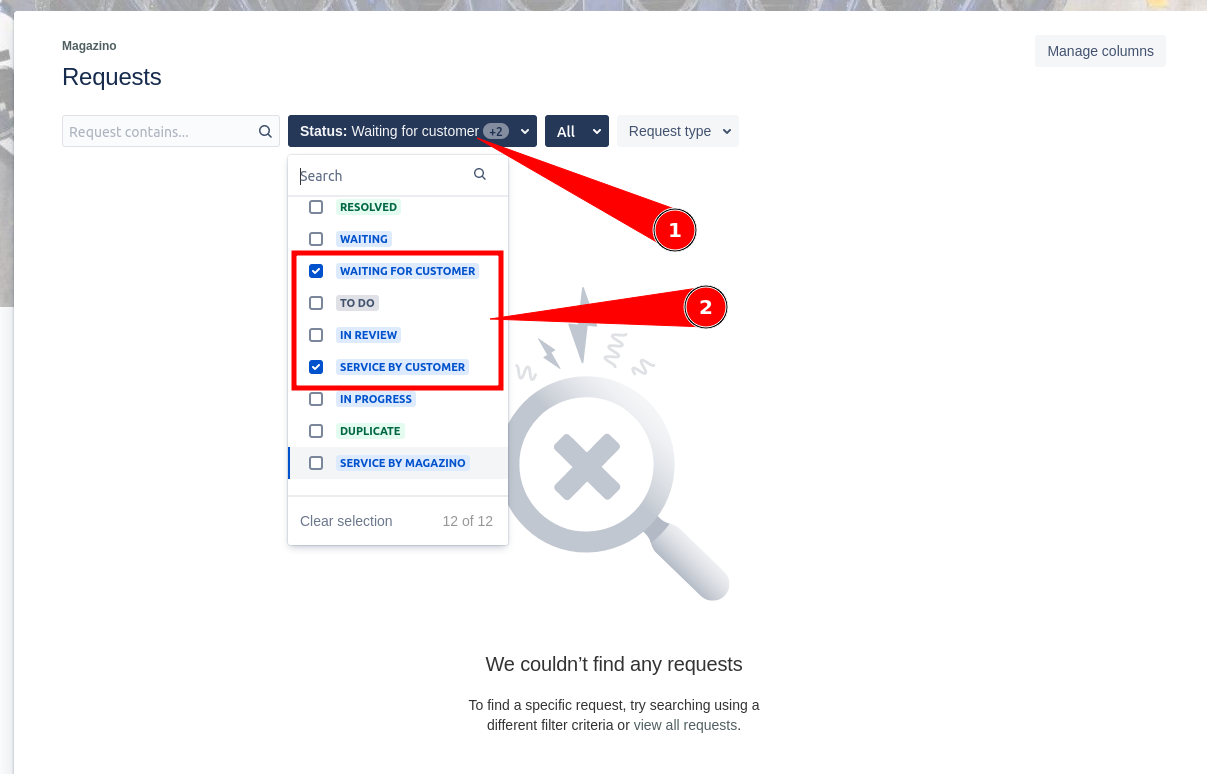
If you want to filter only for tickets that require your action, click on the status dropdown and select only the statuses “Waiting for Customer” and “Service by Customer”.
Creating a ticket
Once you have registered, you can start creating tickets.
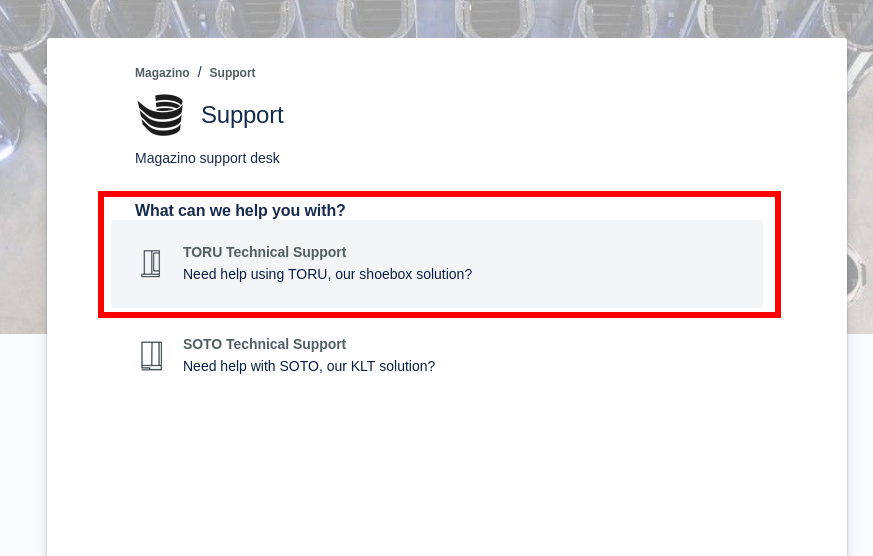
Select “TORU Technical Support” from the list.
You can then fill out the form to create your request ticket.
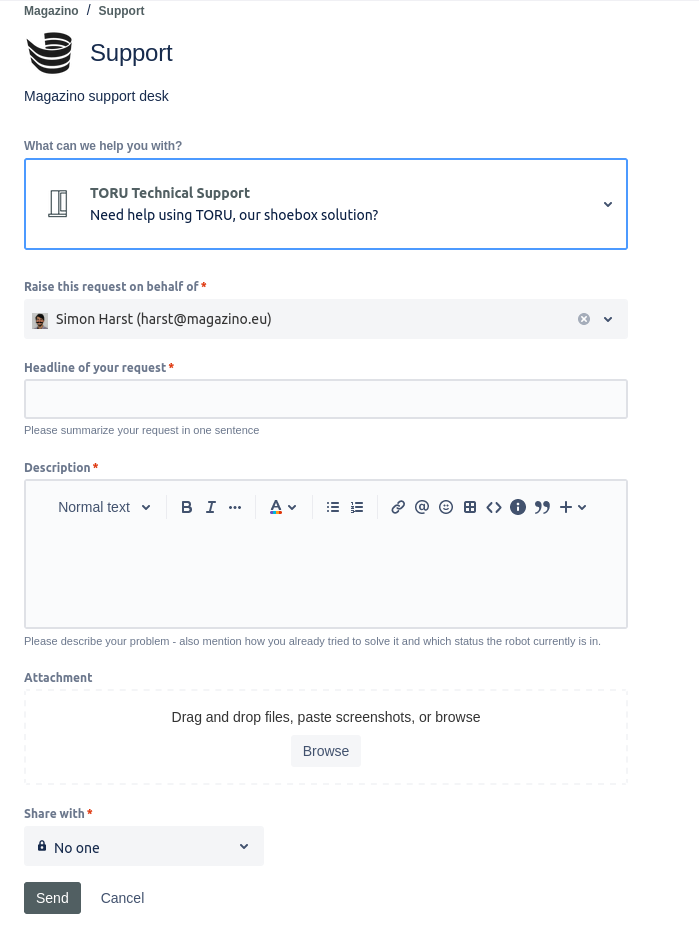
Please create a new ticket for each new problem that you encounter. Do not comment on existing tickets with new problems!
Workflow of a Ticket
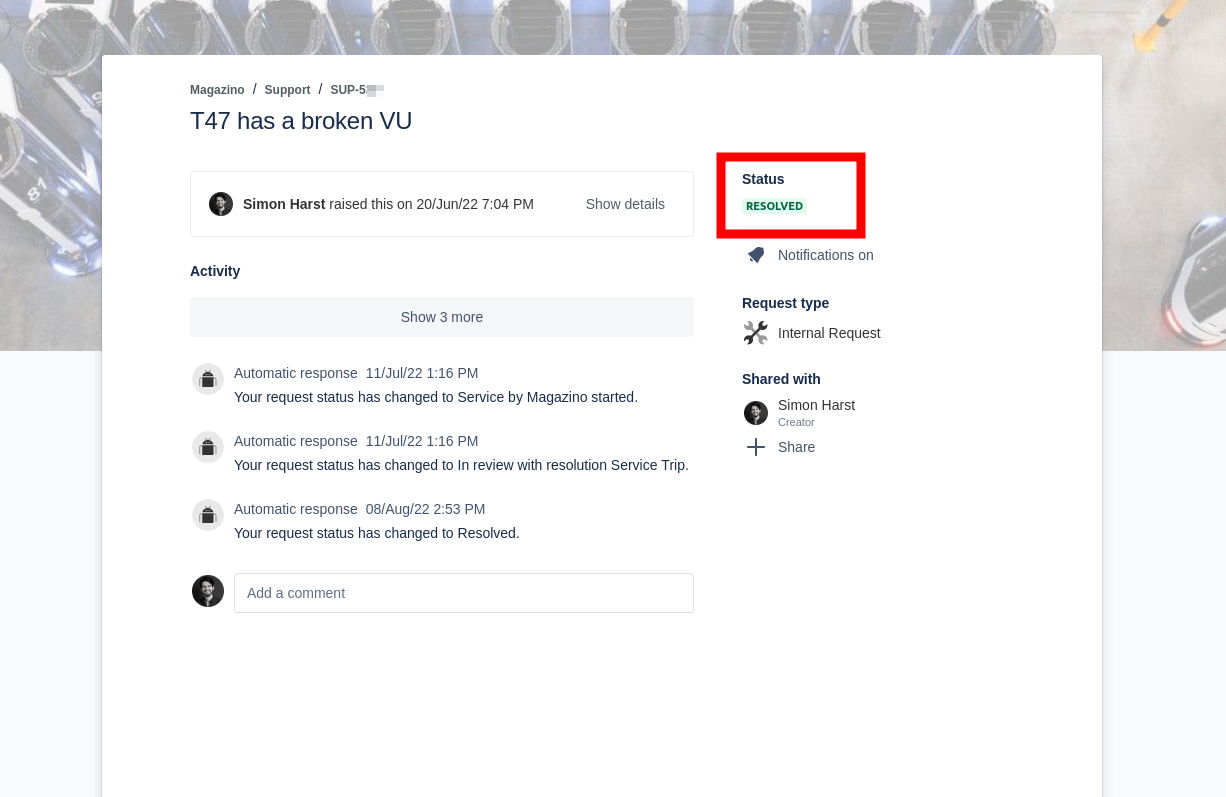
The status of your ticket will change as the support team works towards resolving your issue.
Status | Meaning | Next step done by |
|---|---|---|
To Do | Your request was newly created and is waiting for feedback | MAGAZINO |
In progress | Your request is being looked into by Magazino Support | MAGAZINO |
Service by Magazino | Magazino needs to send a service technician to resolve the issue and is currently planning the service trip. | MAGAZINO |
Service by Customer | The issue qualifies for self-service by your maintenance team. Your maintenance team will receive further instructions in the comments section. | CUSTOMER |
Waiting for Customer | Your request is currently waiting for you to react, for instance by answering on the ticket. You can find further details in the comment section. | CUSTOMER |
Waiting | Your request cannot currently be processed and is waiting for further action. | MAGAZINO |
In development | A software adaption is in development to resolve this support case. | MAGAZINO |
Resolved | Your request was resolved by Magazino Support and the ticket has been closed. | MAGAZINO |
Duplicate | Your request was already raised in a different ticket. If you want to continue tracking your issue, you can find a link to the other ticket in the comments section. |