
This release includes new features and improvements that make SOTO easier to use and more efficient.
SOTO Operating System
Operating system upgrade to a modern software architecture
With this release, the SOTO software platform is being upgraded to a new operating system architecture. This change introduces a modern foundation for the continued development and operation of the mobile robot fleet.
What is changing?
The new operating system is designed to make mobile robots more stable, secure, and easier to maintain. It builds the system from a single configuration file that explicitly defines every software package, setting, and security policy allowed on the robot. This approach minimizes manual, unpredictable updates and ensures that every mobile robot in your fleet runs an identical and consistent software setup.
In addition, the system tracks all changes and allows fast rollback to a previous state if an issue arises—similar to an “undo” function for mobile robots.
Why this upgrade is required
This transition is an essential step to align with evolving IT security requirements and European regulatory frameworks, including the Cyber Resilience Act (CRA). While full CRA compliance is still in progress, the move to a more advanced operating system enables significant improvements in system security, update robustness, and long-term maintainability—forming the basis for future compliance.
This upgrade also ensures that the SOTO platform remains ready for new innovations in navigation, system integration, safety technologies. These advancements require a modern and standardized software foundation, which is enabled by this operating system upgrade.
What this means for your operations
This upgrade provides several practical benefits for your operations:
-
Improved cybersecurity foundation through a modern system architecture
-
Improved system robustness due to more controlled delivery of software updates
-
Long-term platform viability, aligned with evolving industry and regulatory standards
What this means for the Jungheinrich organization
The operating system upgrade also significantly improves software quality and the overall support experience. In the medium term, our customers will benefit from:
-
More predictable software builds, reducing the risk of inconsistencies
-
Faster issue resolution and deployment cycles
-
A stronger foundation for feature development and integration
These improvements directly translate into higher-quality updates and faster innovation cycles for our customers.
Important information on rollout and stabilization
All internal validation and testing procedures have been successfully completed prior to release. However, due to the fundamental nature of this platform change, a temporary stabilization phase should be expected after deployment.
While the upgrade has been thoroughly tested, it is not possible to guarantee identical behavior across all physical customer environments. Site-specific factors may lead to unexpected effects during initial operation. The upgrade will be implemented through a controlled rollout with deployers on site and followed by close post-deployment monitoring. Dedicated support teams are available throughout the entire release cycle to quickly address any issues that may arise.
This upgrade introduces a certain level of operational risk in the short term, but it is a necessary step to ensure long-term stability, security, and continued innovation.
SOTO
Improved driving capability
The driving capability of SOTO has been improved. In some cases, heavy payloads caused excessive wear on the rear wheels. To reduce wear, braking and acceleration forces are now distributed more evenly across all wheels. This increases the service life of drive base components.
Improved error handling on the display
The error handling of SOTO has been improved to show more relevant tutorials and reduce the instances where an “unknown” error is shown on the display. This makes it easier to resolve issues and helps reduce unplanned downtime.
Note: Additional improvements to error handling are planned for the next release.
SOTO reports its current position more accurately
The navigation algorithm of SOTO has been improved so that the mobile robot reports its current position more accurately to third-party master controllers. This increases operational stability and reduces the need for manual interventions.
Reduced CPU consumption by drive control
The CPU consumption of the robot with respect to drive control has been reduced by a factor of five. This improves operational stability by freeing up CPU resources for computation-intensive algorithms such as KLT perception and obstacle avoidance, thereby enabling faster and more stable processing.
Faster boot up
The bootup time of the mobile robot has been reduced by 15 seconds.
Persistent error reports
If the robot needs to be switched to manual mode to resolve an error, the error tutorial remains available in both manual and automatic modes until the error is acknowledged by pressing a button on the display. This allows the instructions to remain visible throughout the troubleshooting process.
Reorder backpack possible with SYNAOS master controller
SOTO is now capable of reordering KLTs in the backpack when receiving instructions from the SYNAOS master controller. This is useful, for example, when an order is canceled and a KLT must be moved to a different compartment to provide access to another KLT stored behind it.
Order from external master controller rejected if backpack is full
In some cases, an external master controller may send a pick order to a SOTO robot with a full backpack. If this occurs, the robot will reject the order and wait until the master controller sends an order that is correct.
Tutorial for unreachable shelf compartment
There is a new tutorial for situations where a shelf compartment is not reachable by the gripper. This may occur if:
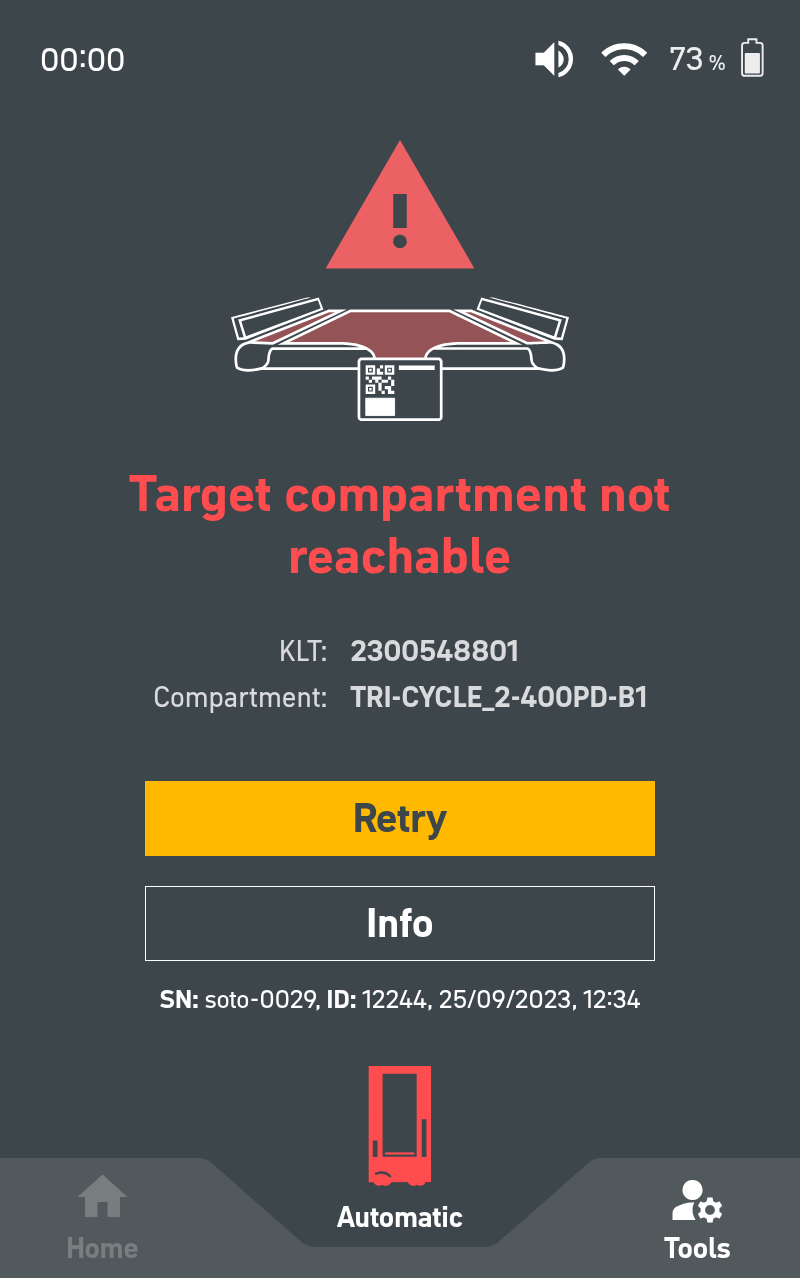
1. The compartments are not modeled correctly.
2. The station orientation or positioning has deviated beyond the maximum allowed tolerance.
3. The shelf adapter is positioned incorrectly.
Tutorial for failed docking to charger
There is a new tutorial for when the robot cannot dock with the charger. This may occur if:
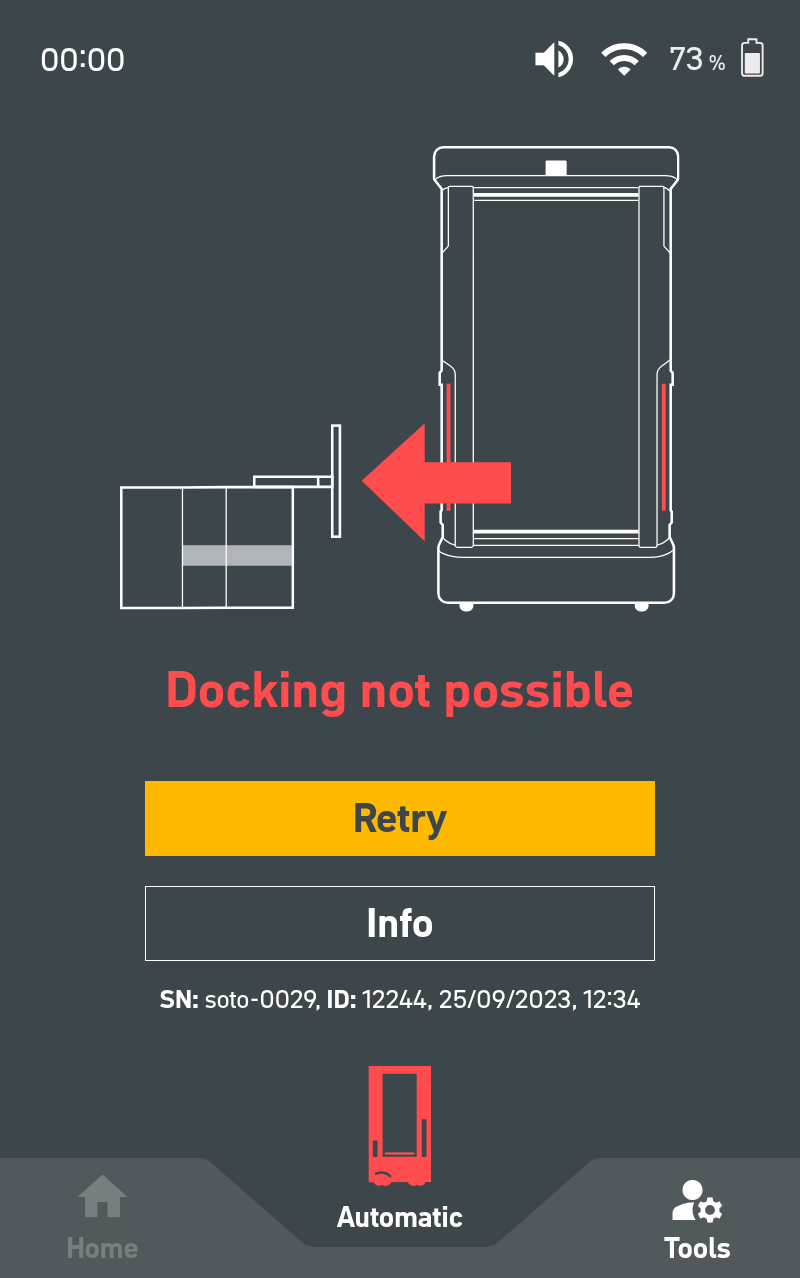
1. Obstacles are positioned too close to the charger.
2. The positioning of the charger has deviated beyond the maximum allowed tolerance.
Sound settings protected with PIN
The sound settings of the SOTO robot are now PIN-protected. A valid PIN must be entered on the display before the settings can be accessed.
SOTO Fleet Manager (SFM)
Copy and paste objects in Environment Editor
In the Environment Editor, it is now possible to copy and paste objects across multiple browser tabs and different projects:
1. Click on an object in the Environment Editor.
2. Press Ctrl + C to copy the object.
3. Press Ctrl + V to paste in the environment editor.
Note:
-
Depending on the map calibration, some objects may appear larger or smaller than other objects in the environment after being pasted.
-
When pressing Ctrl+V, some objects may be pasted outside the work area. If this occurs, zoom out and drag the objects to the correct position.
Dragging of guide lines possible
In the Environment Editor, you can now drag an entire guide line polygon. Previously, only individual nodes could be dragged. To drag a guide line polygon:
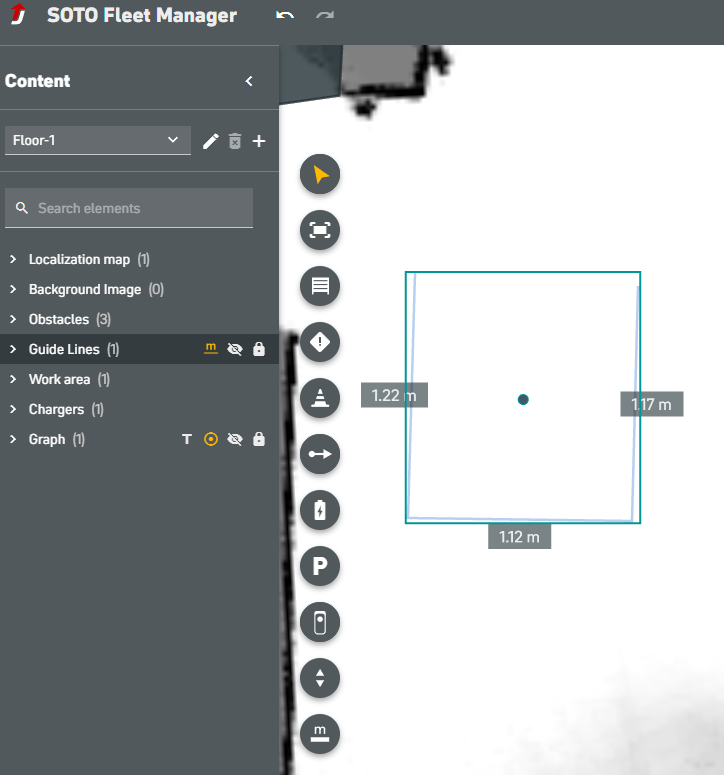
1. Select the Guide Lines tool.
2. Place the guide line nodes and press Enter.
3. Select the Selection tool, then click and drag the polygon.
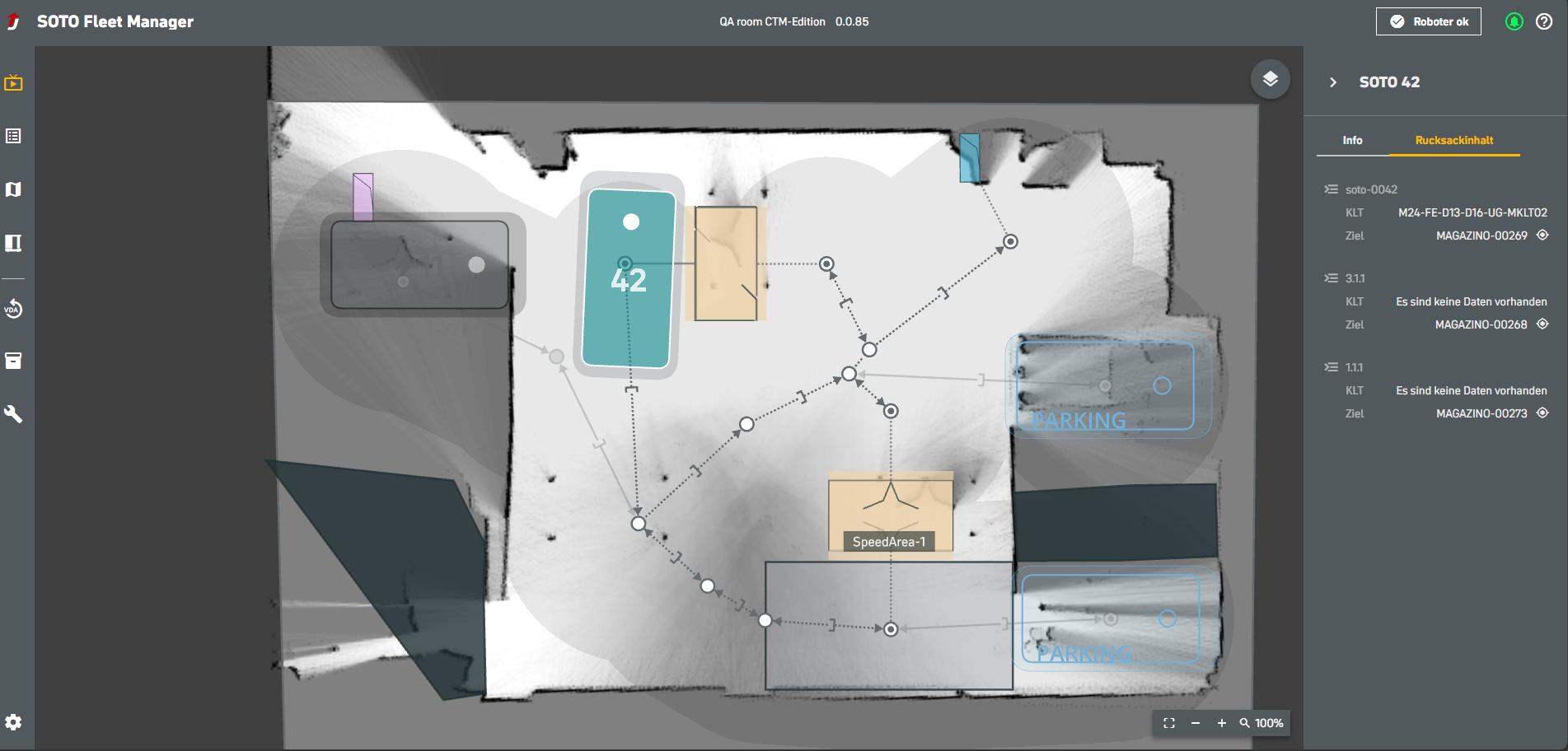
Fixed backpack contents in Live View
When selecting a SOTO robot in the Live View, the backpack contents are displayed more accurately. This was a bug that has been fixed.
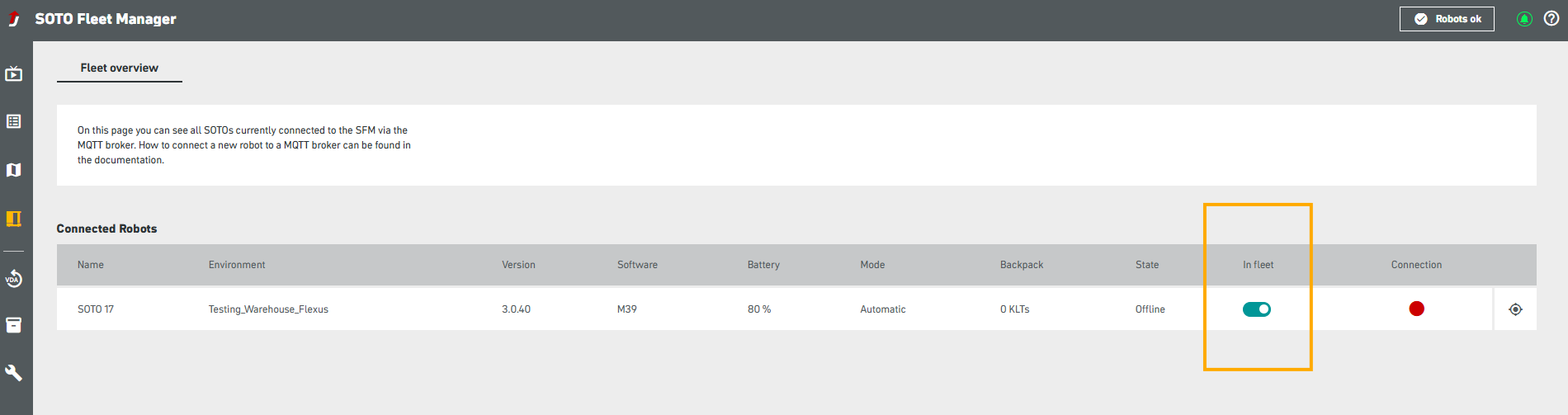
Removing an offline mobile robot from the fleet
In some instances, it was not possible to remove a SOTO robot with an “offline” status from the fleet by toggling the “In fleet” button. This bug has now been fixed.
Second floor nodes displayed in Live View
In some instances, the node names did not display correctly in the Live View when a robot entered an elevator and switched floors. This bug has now been fixed.
Note: The elevator feature is only available when operating SOTO with the SYNAOS master controller.
Technical Specifications
This section provides detailed information about the technical specifications of SOTO. This information is intended for technical experts who need to understand the inner workings of SOTO to deploy, troubleshoot, or improve the performance of SOTO.
New “service” mode setting
There is a new “Service” mode available on the SOTO display. This mode is displayed above “Automatic”, “Manual” and “Mapping” mode. This mode is relevant when executing robot skills or routine maintenance tasks via the Maintenance Center. Some robot skills are directly available on the SOTO display:
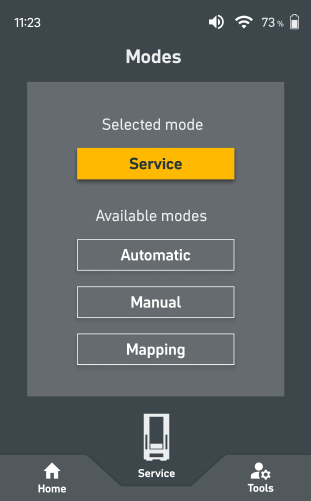
1. Swich the robot into Service mode via the display and enter the correct PIN to authenticate.
2. Press “Tools” and select a skill:
-
-
Clean gripper
-
Light curtain alignment check
-
Brake test
-
Shut down robot
-
Restart robot
-
3. Other skills can be executed directly in SFM via the new Maintenance Center.
Note:
-
The robot can only be switched into service mode via the SOTO display.
-
Manual control via the controller is possible in service mode.
-
Errors will NOT continue to display when switched from automatic mode into service mode.
-
The robot mode cannot be switched while a test is running.
-
Orders are not received while service mode is active.
Maintenance Center now available in SOTO Fleet Manager
Robot skills can now be executed in the Maintenance Center section of the SOTO Fleet Manager. This removes the need to connect a laptop to the robot via a LAN cable.
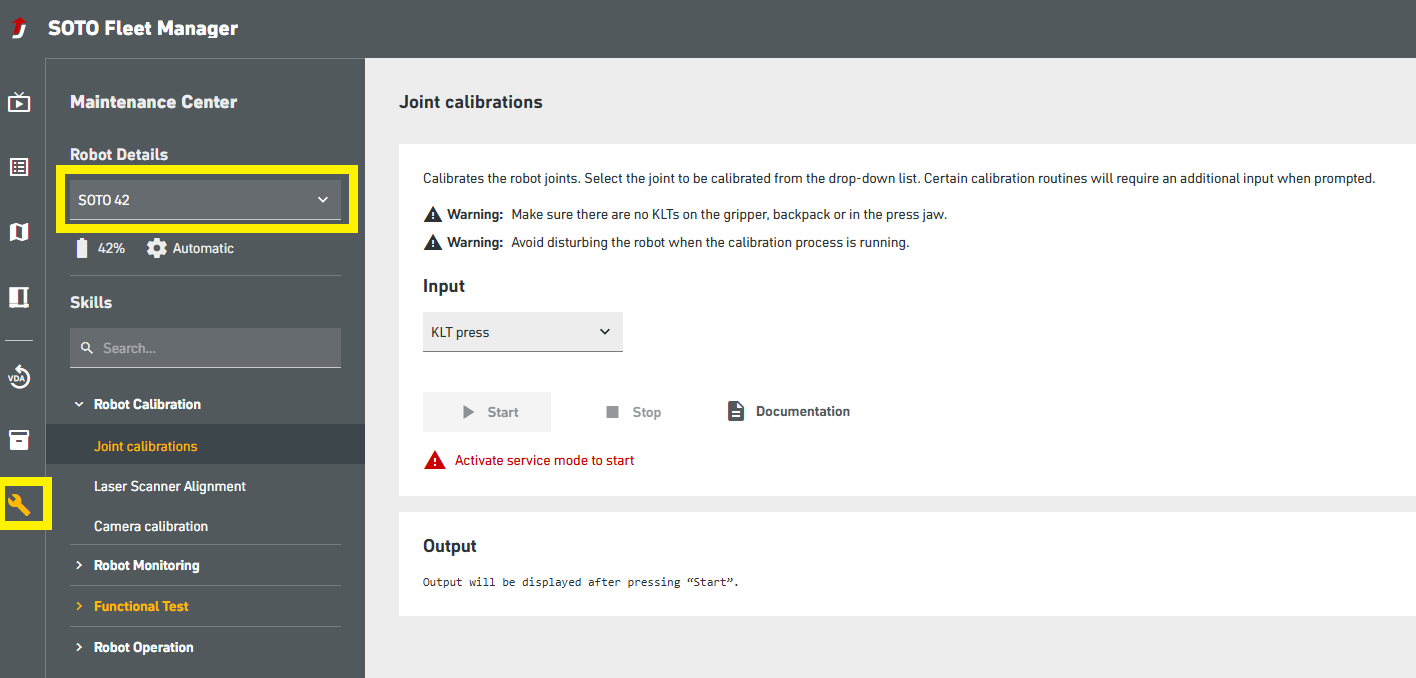
To run a skill:
1. Set the robot into service mode on the SOTO display.
2. Click on the Maintenance Center (wrench icon) in the SOTO Fleet Manager.
3. Select the relevant robot.
4. Select a skill from the dropdown menu, input required information and press “Start”.
5. The results are displayed in the “Output” section.
Note: User authentication is required in SFM before executing skills on a robot. The Maintenance Center can be used by both Service Technicians and Support staff.
New behavior tree error report on the SOTO display
When there is a delay in the behaviour tree, an error named "INTERNAL_BT_ERROR" is reported on the SOTO display. Previously, the generic message, “TOO_MANY_ERROR_REPORTS” was triggered. This should improve the troubleshooting process.
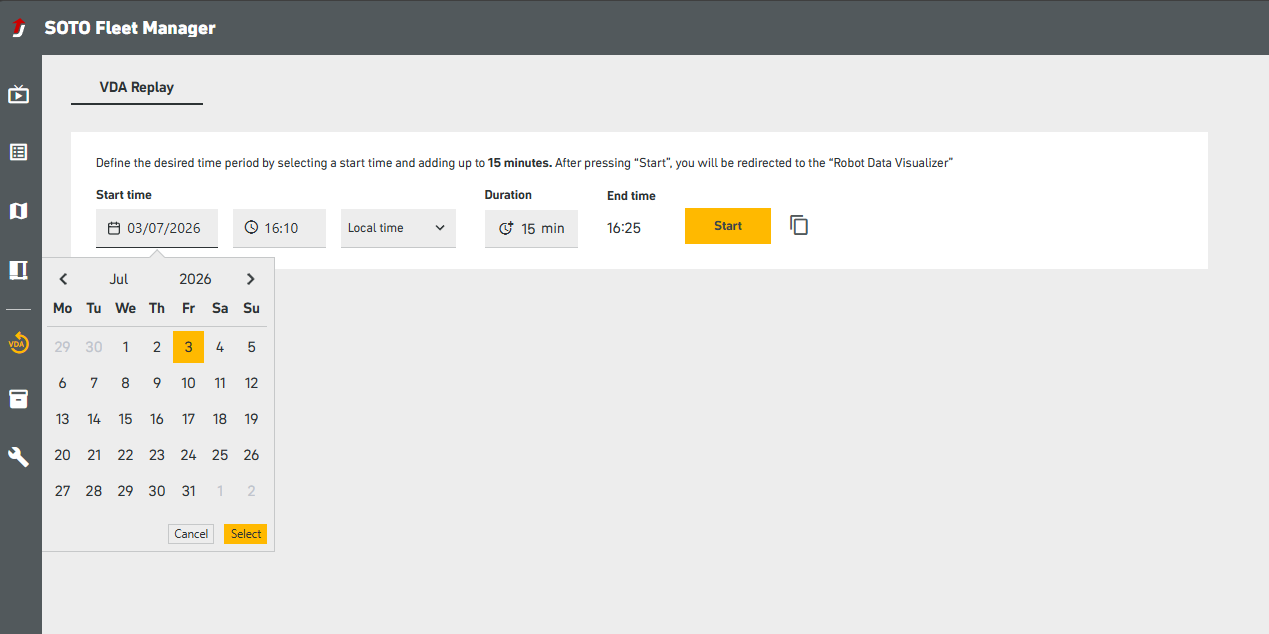
VDA Replay does not show the calendar for selecting dates
Previously, the VDA Replay did not show the calendar for selecting a date range. This bug has now been fixed.
Publishing of operating metrics
The operating metrics of SOTO are now published in robot_operating_metrics and in the mqtt state once per minute.