
The environment modeling section provides a summary of all active and inactive environments. These are the working environments in which the robots operate once activated.
Environment modeling and management
-
In the “Environments” section, you can model a new environment on a selected map or edit existing environments. The existing environments are listed under “active” and “draft” environments.
-
To create a new environment, click the "New environment" button.
Further information on how to model environments can be found in the "Environment Editor" section.
-
The list of environments includes the name, version (the activated environment only has one version) and the creation date.
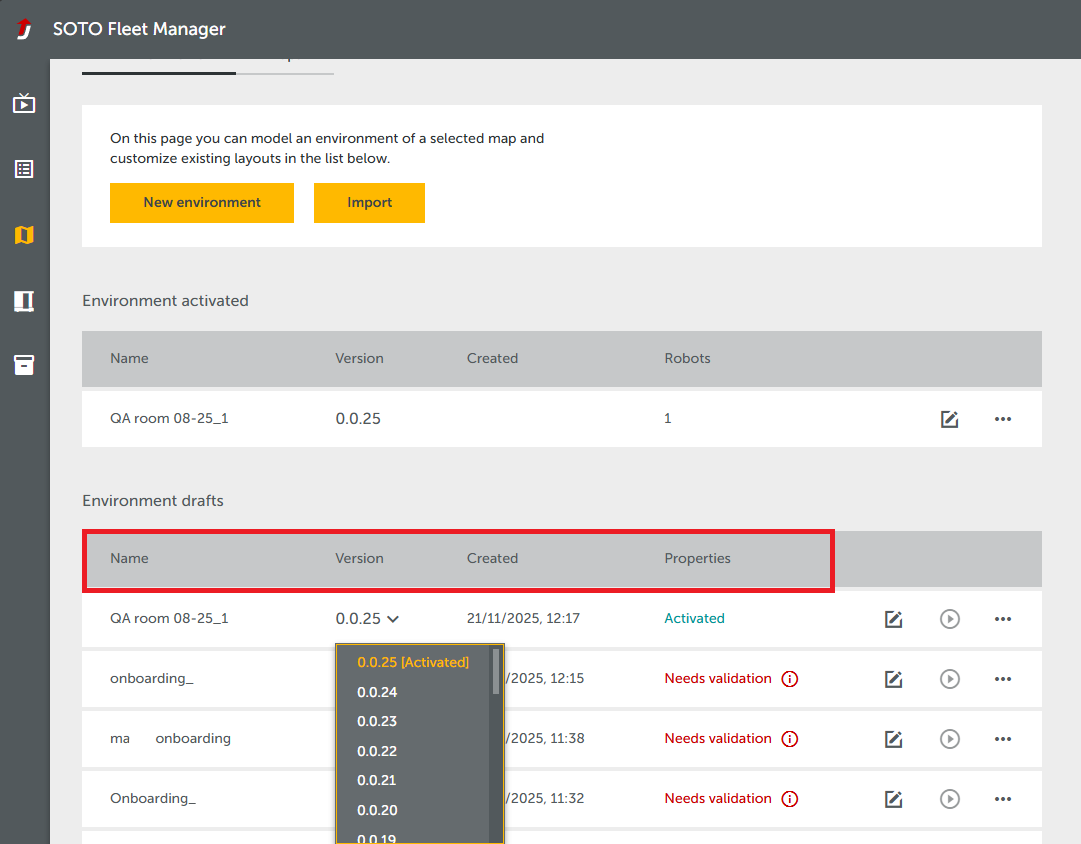
-
The properties column indicates whether the environment can be activated (“Can activate”) or whether it contains validation errors (“Needs validation”). To correct these errors, open the environment, click “Validation” and solve the listed issues.
-
The versions of a currently active environment are also included in the “drafts” list and can be edited (see “Activated” status in the properties column).
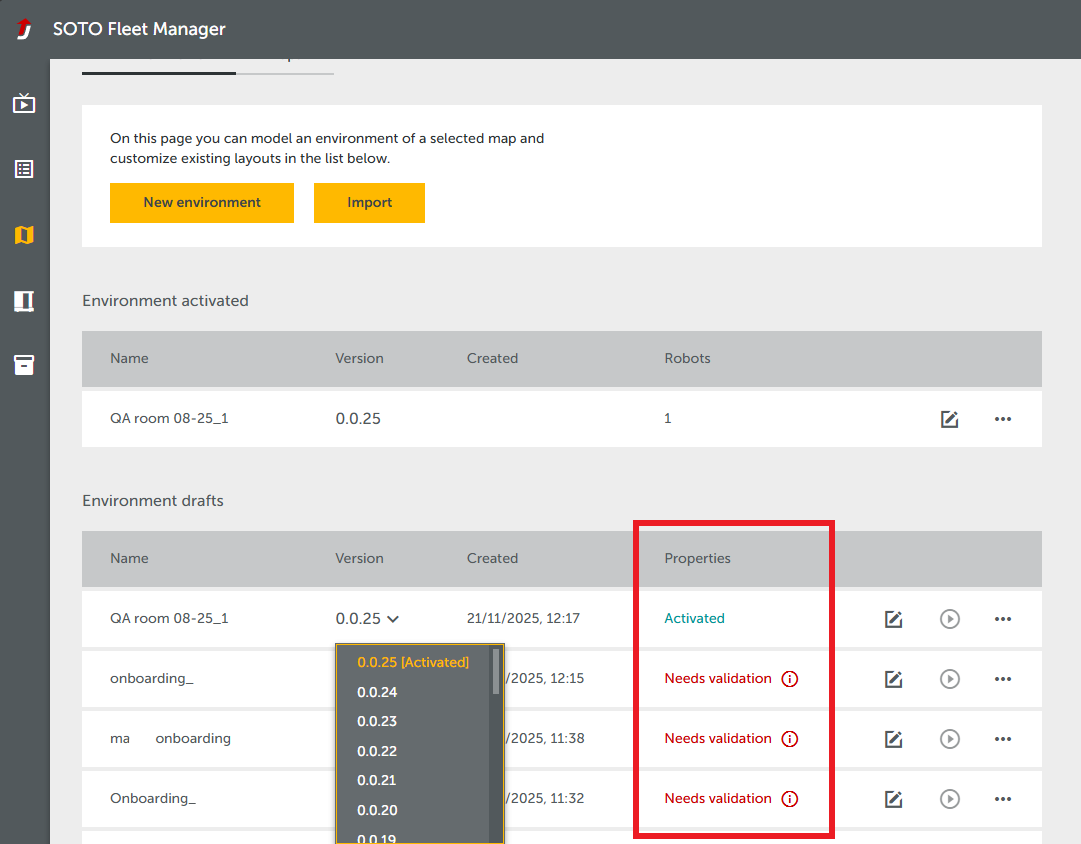
-
The pen icon on the right-hand side can be used to edit environments.
-
To activate an environment, click the play icon.
-
The three-dot menu can be used to delete, download, duplicate and rename an environment.
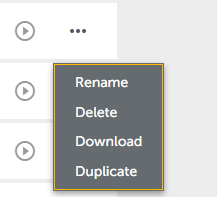
If the Activate (play) button is grayed out, the environment has validation errors. To rectify the errors, click “Edit” and use the validation tool in the top right-hand corner for guidance.
Maps overview
You can view all recorded maps in the “Maps” section. These are listed by name and time stamp. Please note, it may take a few seconds for the maps to load.
If you click on a map, you can view the preview on the right-hand side.
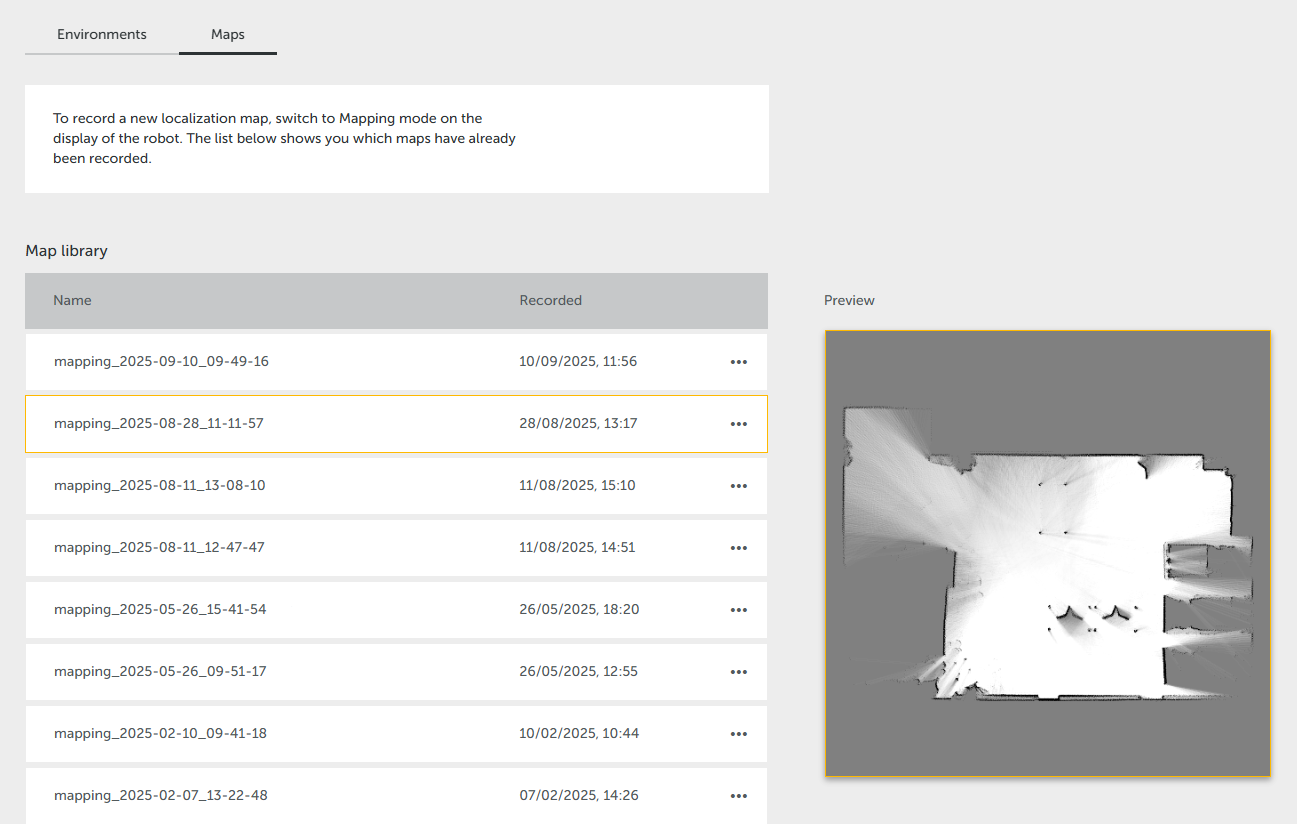
To record a new localization map, switch to mapping mode on the robot's display and use the controller to navigate the robot through the environment. The name is created automatically.