
This section will document the frontend tools of SOTO Fleet Manager (SFM)
Documentation: SOTO Fleet Manager
The SOTO Fleet Manager (SFM) is an integrated cloud platform for managing your SOTO fleet. The platform allows you to model the working environment of the robot, monitor and manage orders, and view the live status of each robot in your fleet.
Registration & Application
-
Access: Access to the SOTO Fleet Manager is provided through a pre-authorized Microsoft account, set up in advance by Jungheinrich.
-
Website: *client name*.magazino.cloud/#/en/live-map
-
Browser: Optimized for Google Chrome and Microsoft Edge
-
Devices:
-
Laptop: Entire SFM
-
Tablet: All functions, except environment modeling
-
-
Languages: German, English
General structure
The general structure of the software application is presented below to provide a clear understanding of its components and functionality.
-
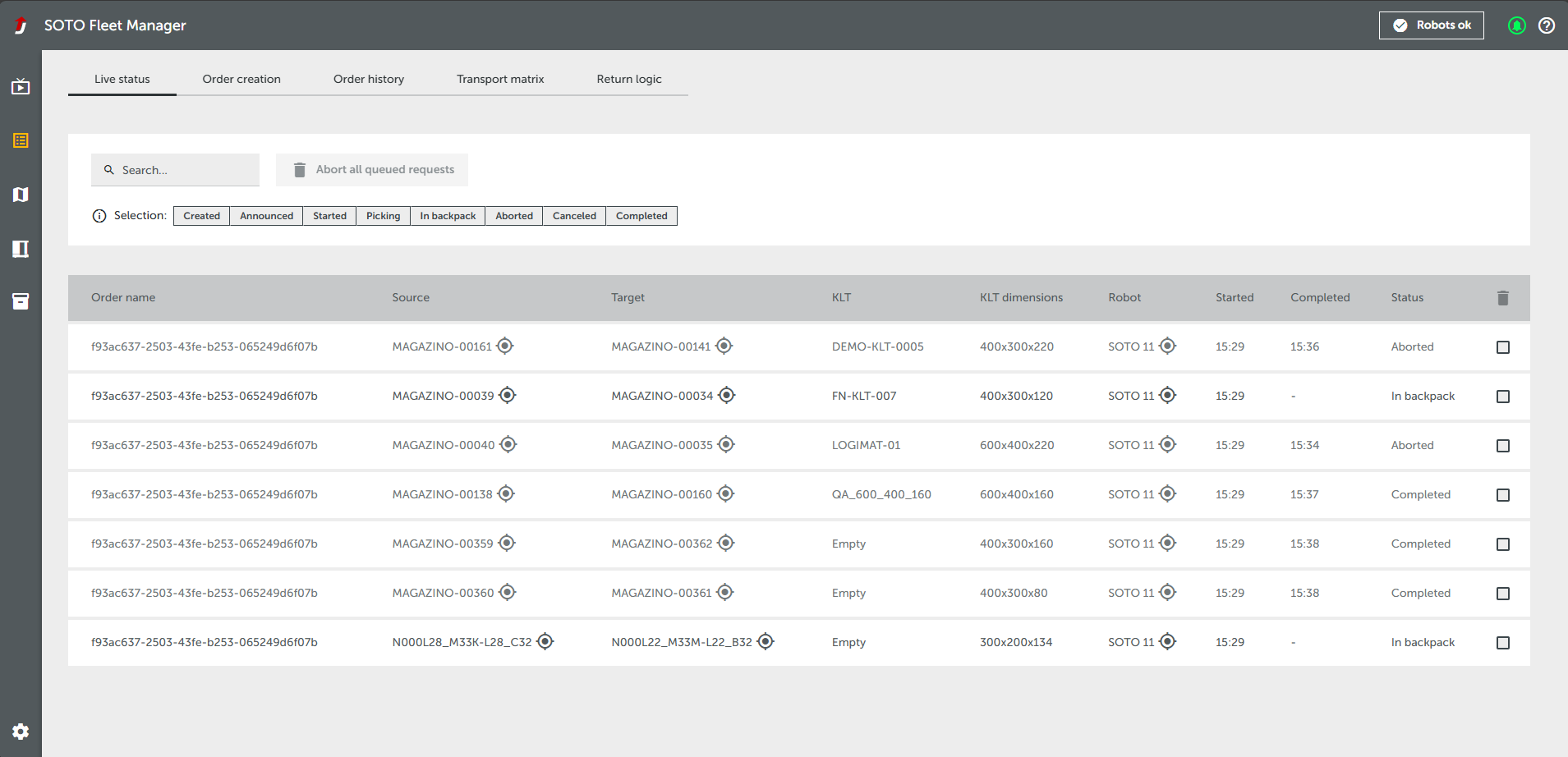
Toolbar (left): Here you will find all the essential tools, arranged from top to bottom: the live view, the order manager, the modeling tool and the fleet overview. You can switch between German and English in the settings at the bottom of the bar.
-
Header bar (top): All robots connected to the system are displayed here as icons with a number. If an error occurs, the robot icon changes to red. You can find each robot on the map by clicking on the icon. You can also view notifications, and access a help area with links to the support portal, documentation, licences and imprint.
-
Content: Specific functions are displayed within the content bar. Additional features can also be used, which are displayed in the top left-hand inner area.
Functionalities at a glance
-
Live View: Current locations and comprehensive status information on your robot fleet.

-
Order management: Tracking of orders, materials and fleet activities, creation of test orders.

-
Environment Editor: Tools to create and customize your work environment, and plan routes.

-
Robot overview: Keep track of all robots that are connected to the SFM via the MQTT broker.

-
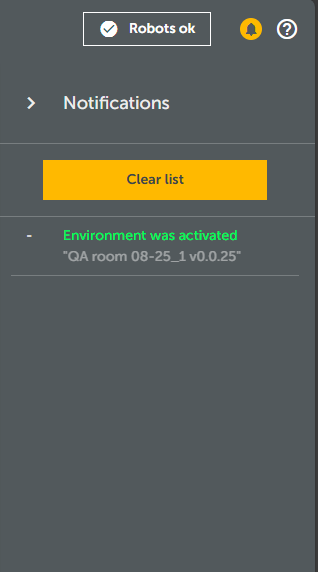
Notification center: Provides updates on the robot fleet, environments and new software updates. Smaller notification pop-ups also appear on the desktop version to provide information when the notification center is closed.

-
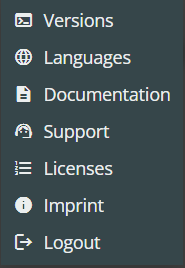
Help: In the Help section, you can change the language, access the documentation, contact support, and view the currently active software version of the SFM. The imprint and licenses are also displayed. The Log Out option can be used to exit the software and log in with a different account.

-
Jungheinrich logo: Click on the logo to return to the Live View.

Additional notices
If the connection is lost or a fire alarm is triggered, a pop-up appears in the middle of the screen as a warning message.

Mobile view accessibility
The SFM is also available as a mobile version to support users on the production floor. The mobile version provides access to essential fleet information, so that users can quickly respond to robot errors and rectify them. To access the mobile version, enter the SFM link into the browser of your phone.
.jpg?cb=4265d72e2702e8f808cc639a0776bbde)
Mobile-specific Capabilities
-
Live View
The mobile live view can be used to view the status, location and movement of individual robots. This is useful to quickly locate robots in case of errors. All map-related features, such as object properties can be accessed by touch gestures. -
Notification center
The mobile app also provides notifications directly on the map and an overview of all prior messages in the notification panel. -
Help
The help section is also available with reduced functionality. -
Robot Overview
You can also view all robots that are a part of the fleet in a list format. The list provides the robot name, battery level and status. To locate a robot in the Live View, press the target icon next to each robot. -
Settings Access
The settings menu can be used to switch languages.
Differences from the Desktop Version
-
The Order Manager is not included
Creating and managing orders is not available on mobile devices, since it requires a widescreen resolution to display all information and filters.
Notifications on Mobile Devices
To receive notifications on mobile devices, complete the following steps:
iOS Device:
-
Open the SFM in a Chrome browser
-
Click the share icon in the address bar (box with arrow pointing upwards)
-
Click the three dot menu and “Add to Home Screen”
-
Click on the SFM app on your home screen
-
Click “Allow” to accept notifications.
Android:
-
Open the SFM in a Chrome browser
-
Click the three dotted icon in the address bar
-
Click “Add to Home Screen”
-
Click on the SFM app on your home screen
-
Click “Allow” to accept notifications.