Summary
For each delivery request, the system can automatically generate a corresponding return order. These return orders are defined through a "Return logic," which works similarly to the Transport Matrix.
Return logic rules
-
Delivery target → must be a put-down compartment.
-
Return source → must be a pick-up compartment.
-
Return target → must be a put-down compartment.
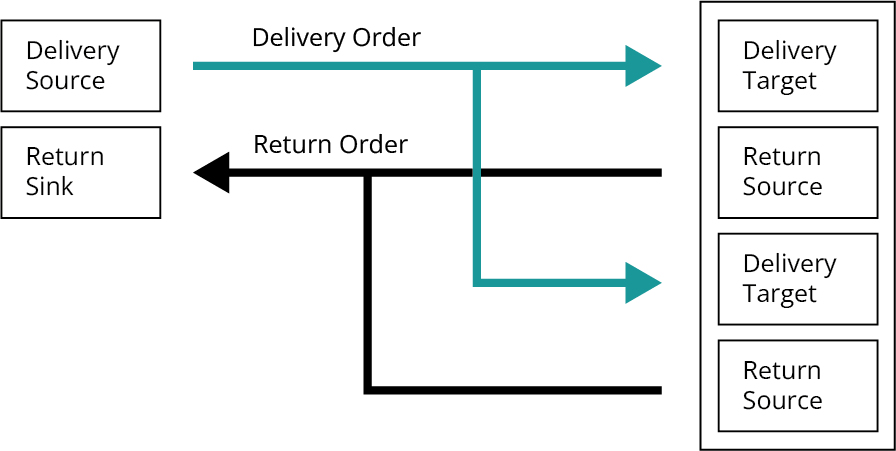
When the 'delivery target' of a request matches the first column (delivery target) in the return matrix, the Order Manager will automatically create a linked return request.
Properties of a Return Request
-
Source/Target: Defined by the return logic.
-
Barcode: Always empty (blind pick).
-
KLT dimensions: Inherited from the original delivery request.
Return logic
Follow these steps to create a return logic:
-
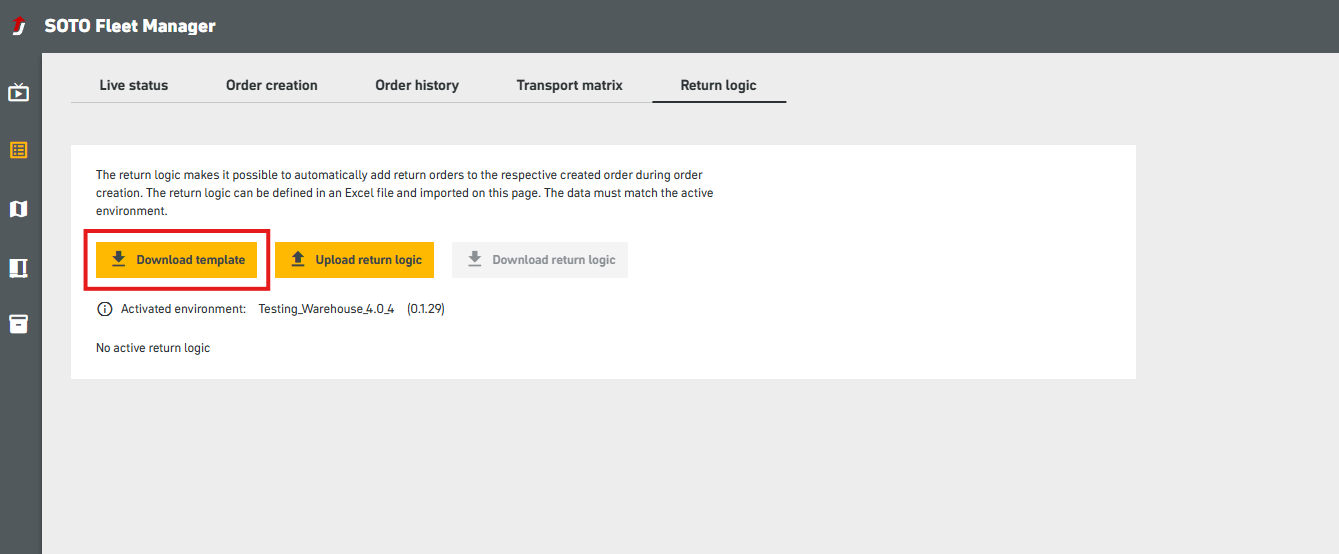
Click on the return logic tab and download the CSV template
-
Create the return logic in Excel and save / export as CSV again
-
Upload the CSV file
-
Activate the return logic.
1. Download the CSV template
The CSV template contains all relevant input about the original compartment and the respective return source or target.
2. Create the return logic in Excel
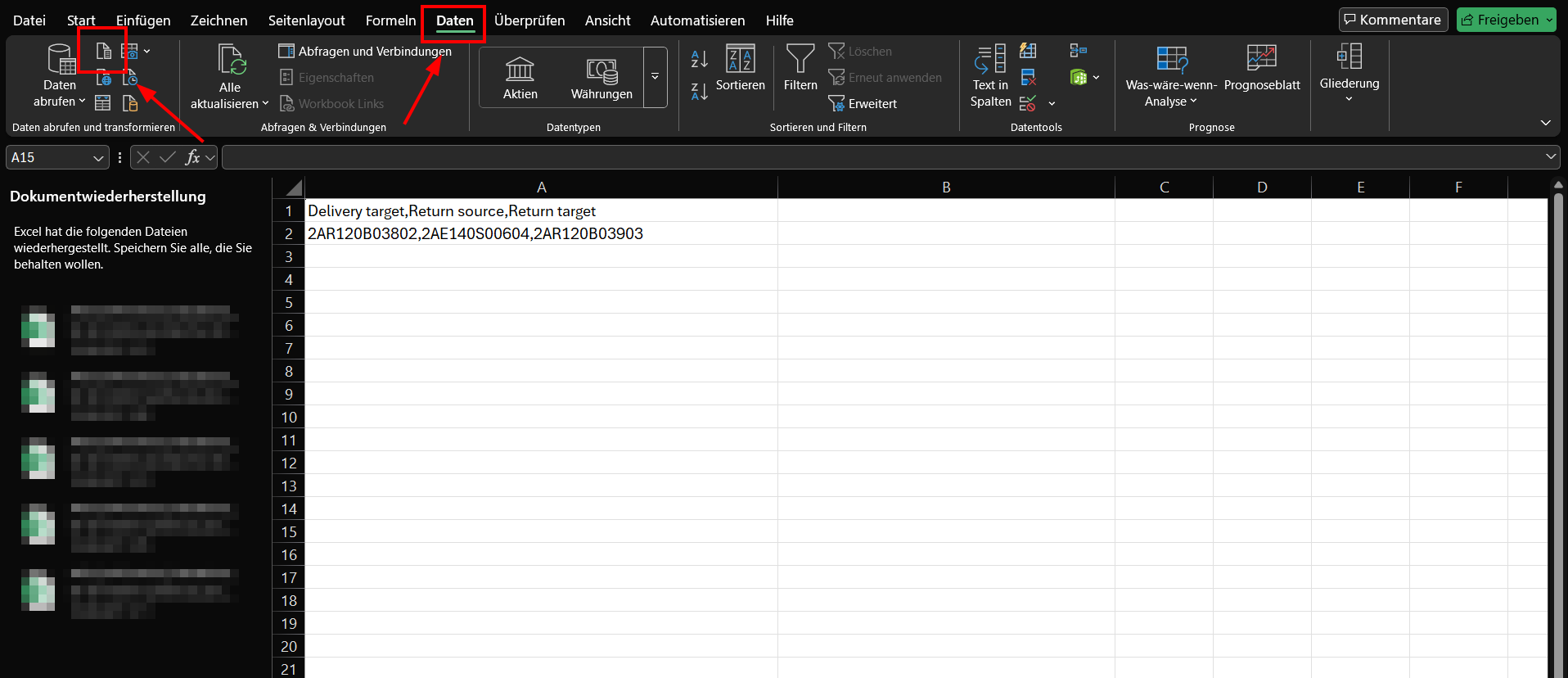
Open the CSV file in Excel. Then fill in the table with the delivery target compartments that should automatically trigger a return request and save the CSV file. Make sure you follow these instructions:
-
Use Excel to edit the CSV file.
-
Possible inputs include: Original target compartment (source or target), return source and return target
The return logic is not compatible with compartments modeled as both return source AND return target.
How to import in Excel
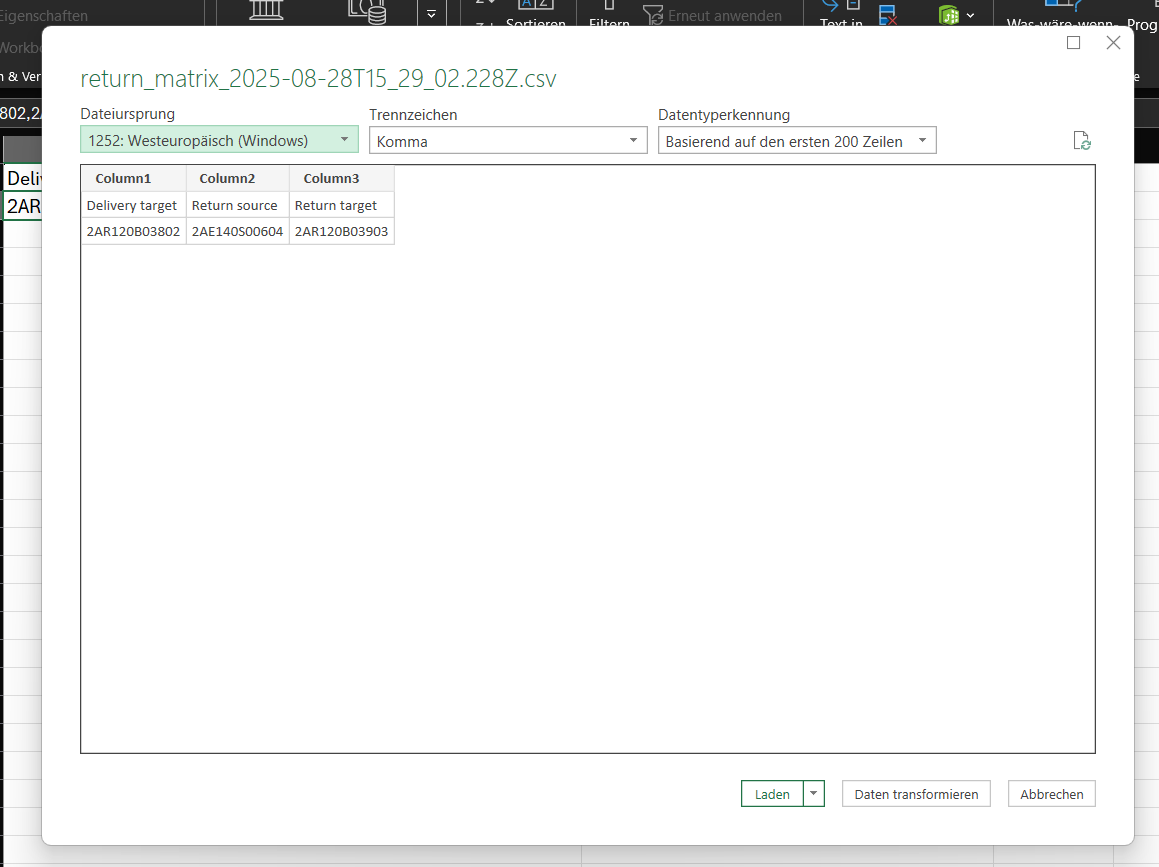
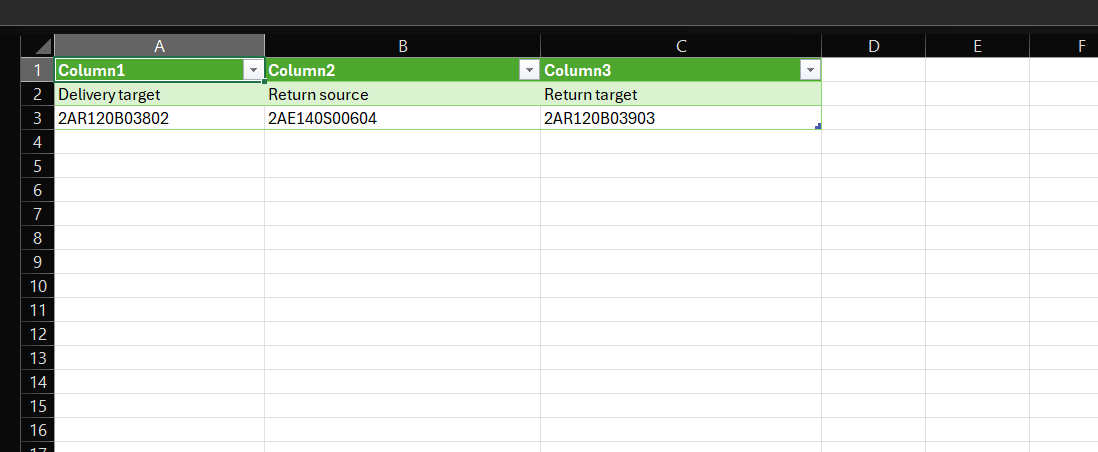
3. Load Return logic in the Order Creator
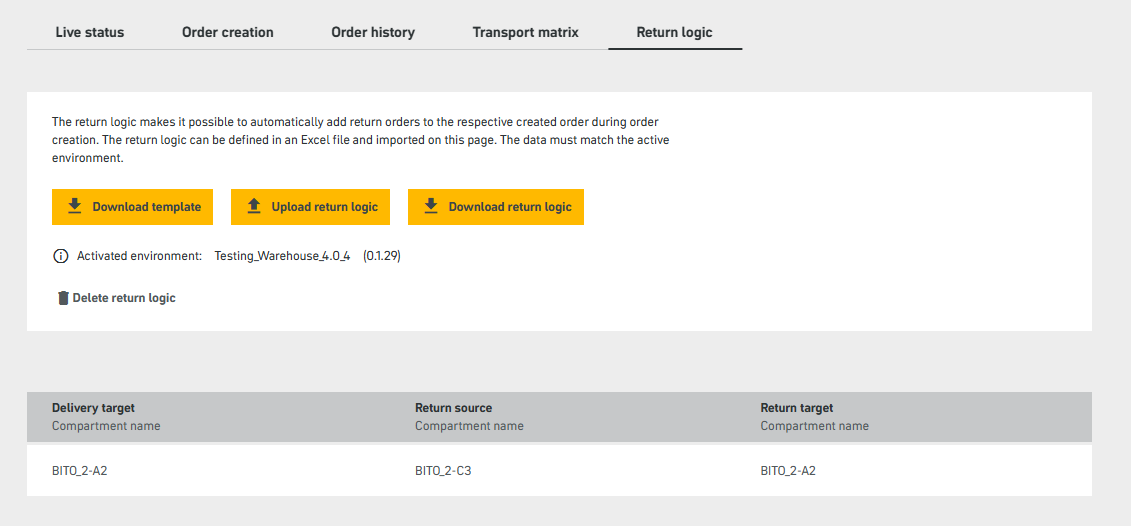
Click the “Upload return logic” button in the SFM to import your template.
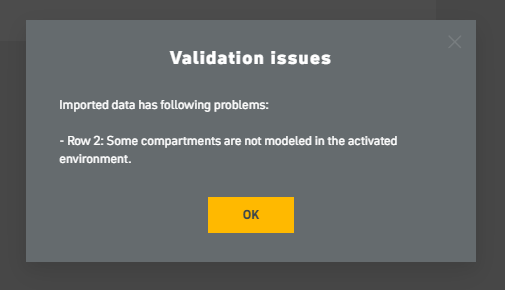
If there are validation issues, they need to be fixed in Excel.
If successful, the uploaded transport matrix will be displayed in a table.
Note: This table is not editable. If you want to modify the return logic, you must edit it in Excel and upload a new version of the CSV file.
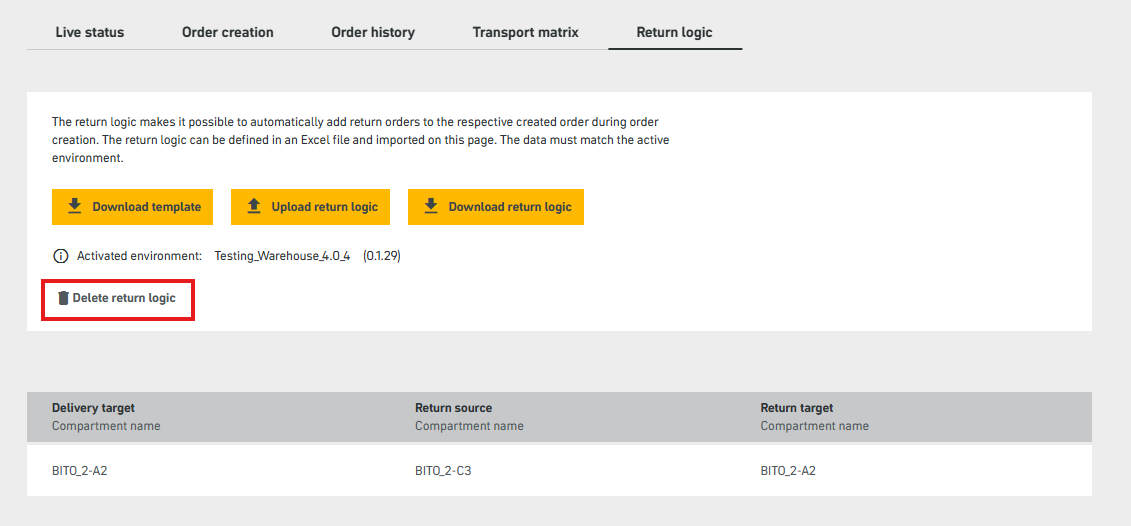
You can delete an active return logic by clicking the “Delete return logic” button.
Warning! If you delete a return logic, it cannot be restored in the SFM. Please download the the return logic before deletion.