
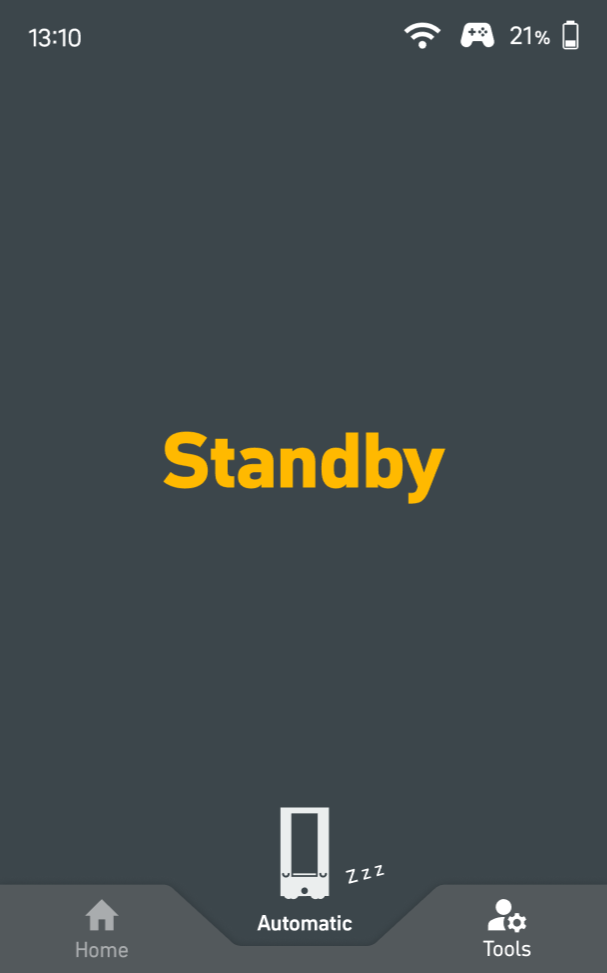
The SOTO display provides a quick overview of the robot's status and easy-to-digest information. It also provides a range of functions to control the robot and guides the user through several exception tutorials to quickly resolve robot errors. SOTO has two displays that can be operated via touch gestures. The displays can be used to change the robot settings to Automatic, Manual, and Mapping to support different operational requirements.
Display structure
|
|
%20(66)-20251205-152831.png?cb=c7e6be8338604b5e0dd7f1dc0798d1c0)
|
Tools: This section contains general information about the robot, such as settings, and sensor data. It also contains functions for interacting with the robot based on its current state. More info: Exception handling tools |
%20(64)-20251205-152831.png?cb=ee1924d60d047434b64b84bbc46491b7)
|
Modes: To change the robot's mode, click on the current mode displayed beneath the SOTO avatar. Note that mode changes are password protected.
|
Avatar overview
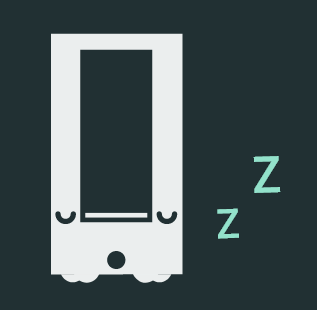
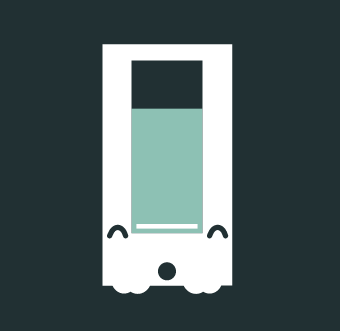
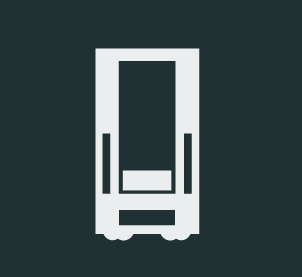
The SOTO avatars, located at the bottom center of the page, display the robot's current state.
|
Avatar |
Meaning |
|---|---|
|
Standby: waiting for orders |
|
Charging: docked to a charger |
|
In operation, no issues |

|
The robot has an error |
|
Robot is waiting for input |
Password
%20(65).png?cb=bb06240348e5cb9ba10955530e012b2b)
|
Certain features of the display require authentication via a password. This password can be managed by using MagCli. The following features are restricted:
|