
Skip table of contents

SOTO Display - Exception handling

Tutorial structure

image-20260202-161543.png

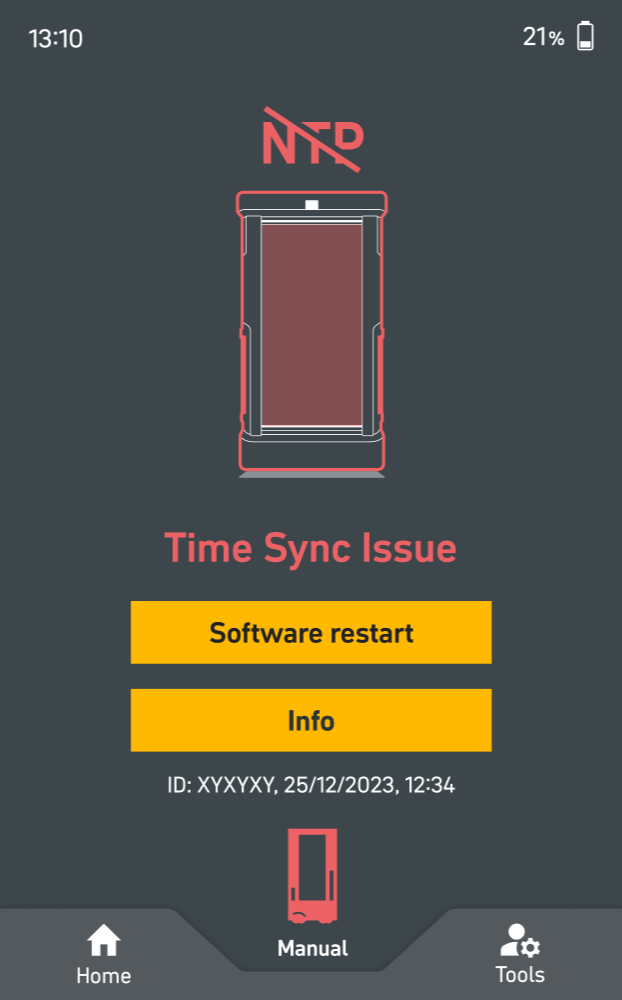
If an error occurs, the display will present the error along with specific instructions for solving the problem. If resolving the error is challenging, users have the option to manually cancel or complete the request and report the problem by submitting a ticket through the display menu.

Note that some errors may not provide instructions. In these cases, users can consult the SOTO tutorial, which provides generic error resolution for hardware and software related issues.

  • Header: Provides no additional information about the error, except if there is a problem with the connection to the MQTT broker (i.e. the MQTT icon is displayed in red).

  • Graphic: Provides a visual indication of the problem.

  • Headline: Describes the problem that has occurred.

  • Additional information: Provides details about the affected KLT, shelf or obstacle.

  • Action buttons:

    • Retry: Acknowledges the error (users should first press 'Info' to inspect the problem and then use 'Retry' to proceed).

    • Software restart: Restarts the bringup (related to hardware problems).

  • Info: Provides an explanation of the problem and a solution.

  • Problem ID and time stamp: Important for error reporting and troubleshooting

JavaScript errors detected

Please note, these errors can depend on your browser setup.

If this problem persists, please contact our support.